6.10. Bookmarks
The Bookmarks view lists the search definitions
you have bookmarked for re-use. Open it from , with  Open Bookmarks on the main toolbar,
or with Ctrl+B. On macOS, press Cmd+B.
A bookmark stores a complete search definition, so you can return to it later without re-entering anything. It holds the profile, the bookmark name, the search or monitoring mode and the search criteria. It also holds the result options and the dynamic discovery, dynamic autofind and field detection settings. It stores no result data.
To create one, choose  , or right-click the tab and choose Bookmark Tab.
The Bookmark Name? dialog proposes the tab title; the name also
becomes the tab title when you open the bookmark. If a bookmark with that
name exists, Overwrite? asks first. A bookmark needs a saved
profile. For a temporary selection of data sources, the Status view reports
Bookmarks can be created only if the data sources are defined in
a profile.
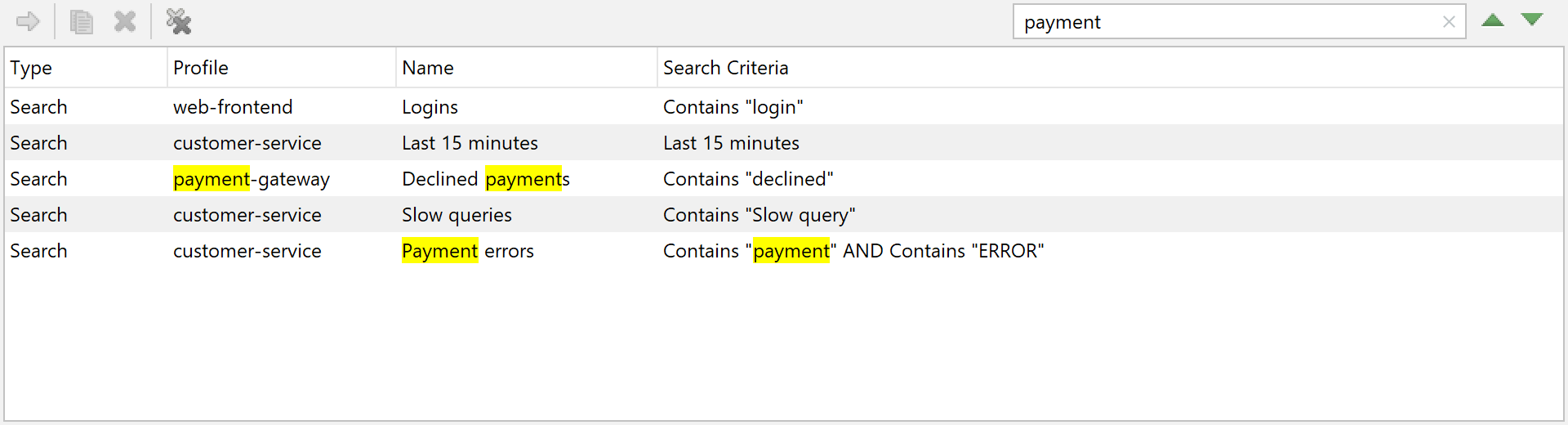
Fig. 6.44 The Bookmarks view, with a term entered in the find bar and its matches highlighted.
To open a bookmark, double-click it, or select one bookmark and click
 Open. Retrospective opens a new search tab named
after the bookmark, with the stored criteria, mode, result options and
settings. It re-selects the bookmarked profile, ready for you to start the
search or monitor. If another tab already has that name, a number is
appended, for example
Logins (2).
The toolbar and the right-click menu offer Open,
 Copy (textual),
 Delete
selected bookmark and
 Delete all. The list
holds at most 100 bookmarks and is kept across restarts; adding one more
removes the oldest, and the Status view names it. Delete
removes the selected bookmarks without asking; Delete all asks
first.
A find bar sits at the right end of the toolbar. Press Ctrl+F to move the keyboard focus into it; the field is unavailable while the list is empty.
The term is matched as plain, case-insensitive text against the text of
every column. Wildcards and regular expressions are not
interpreted. No row is hidden: every match is highlighted in yellow and the
current one in red.  Previous and
 Next step through the matches and wrap around
at either end. Esc in the field, or its clear button, empties it.
Note
A bookmark refers to its profile by name. If the profile has been renamed or deleted, the tab opens without a profile, and the Status view names the missing profile (see the rename note under Profile Manager).
Bookmarks can be written to a file and read back through the and menu items (see Bookmarks).