11.2. Exporting and Importing Hosts, Profiles and Bookmarks
Retrospective can write its configured hosts and profiles, and its bookmarks, to XML files and read them back. Use this to move a configuration to another computer, to share it with a colleague, or to keep a backup. All four actions live in the menu:
 Export Hosts and Profiles
 Import Hosts and Profiles
 Export Bookmarks
 Import Bookmarks
Preferences are not part of these files. To take over the complete configuration from an earlier Retrospective release on the same computer, use Import from Previous Version instead. To read host definitions from SSH or PuTTY configuration files, see Import Host Configurations.
11.2.1. Hosts and Profiles
first asks whether the exported file should carry the stored passwords, key passphrases and SSH keys:
Clear passwords leaves them out, so everyone who imports the file enters their own credentials. This is the default, and the right choice whenever the file is shared with other people.
Keep passwords includes them. Retrospective encrypts them with a key that belongs to this installation alone, so no other installation could open them. They are therefore re-encrypted for the file:
When a master password is set, the Unlock stored credentials dialog asks for it again; confirm with Unlock.
The Set export password dialog asks for an export password. Generate proposes a strong one.
Whoever imports the file has to be told that password; send it by a route other than the file itself. Canceling either prompt cancels the export, and no file is written. See Sharing a Configuration.
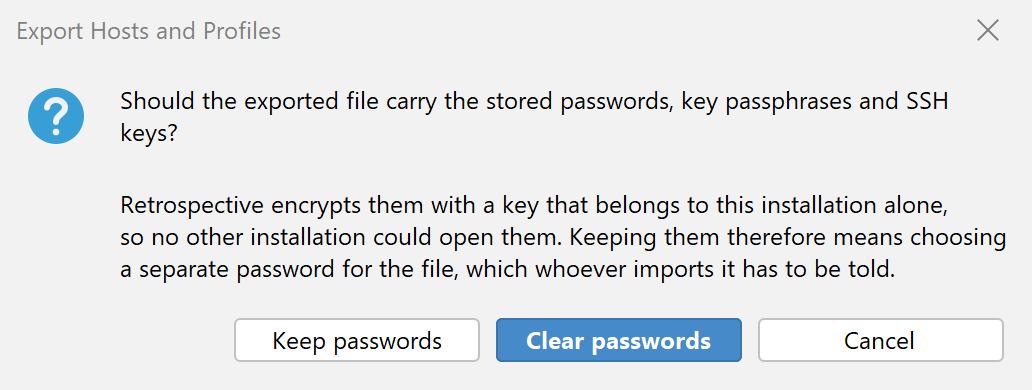
Fig. 11.19 The Export Hosts and Profiles question about stored credentials.
The menu item is grayed out while there is nothing beyond the local computer to export: no host, no profile and no data path.
Then choose the target file in the Export Hosts and Profiles
dialog; the proposed file name is configuration.xml. An existing file is
replaced only after you confirm <file> — overwrite? The file contains all
defined hosts together with their data sources, and all
profiles. An export does not change your running configuration. The outcome is
reported in the Status view.
reads a previously exported configuration file. Unless your current configuration is still empty, a prompt asks how to combine the file with it:
Update adds the imported hosts and profiles to the existing ones.
Overwrite replaces the existing hosts and profiles with the imported ones; the current configuration is lost.
When the file carries credentials, Retrospective then asks for the export password that was set when it was written. A wrong password is answered with Wrong password. Enter the password that was set when this configuration was exported. A file exported without credentials never asks for one.
The result is saved immediately: imported hosts appear in the Host Manager and imported profiles in the Profile Manager without a restart. If imported hosts are incomplete or invalid, the Status view adds Some hosts are invalid and need to be corrected. Correct them in the Host Manager.
Note
When you choose Update, an imported host or profile that stems from the same original definition replaces your existing copy. Entries that merely share the same name are kept side by side; nothing is renamed or merged by name.
11.2.2. Host Keys in an Exported File
An exported file also carries the host keys Retrospective has stored for the hosts it exports. Whoever imports it reaches those machines without being asked to confirm a fingerprint. This matters beyond convenience: a first connection is the one moment at which an unverified host could be another machine pretending to be it, and an imported key removes that moment. Host keys are public, so they travel whichever answer you give to the password question. The export password never applies to them.
Only keys Retrospective stored itself travel. A host you answered
Trust once for was never written down, and a host trusted because
your own ~/.ssh/known_hosts lists it belongs to a file Retrospective reads
and never copies elsewhere. Trust such a host with
Trust and remember before you export if its key should travel. See
Server Identity.
On import the keys are merged into your own stored keys, and an existing key is never replaced:
A host you have no key for takes on the imported one.
A host whose stored key matches the imported one is left alone.
A host whose key differs from the imported one is reported in the Status view, and your key is kept. Your key can be a stored one, one you trusted once in this session, or one from your own
~/.ssh/known_hostsorknown_hosts2. Confirm through another channel which key is right. If a key Retrospective stored is the outdated one, open the Host Manager, select the host, press Remove stored key, and import again. A key from your ownknown_hostsfile has to be corrected in that file.
A file exported by an earlier Retrospective release carries no host keys, and imports as it always did.
11.2.3. Bookmarks
writes all entries of the
Bookmarks view to an XML file; the proposed file name is
bookmarks.xml. An existing file is replaced only after you confirm. A
bookmark stores a search definition, not any result data. An exported
bookmark is therefore only useful where the referenced profile also exists.
Import it on a computer that has the same hosts and profiles configured. The
menu item is grayed out while the Bookmarks view is empty. A successful export
is reported in the Status view; a failure is shown in a message
box.
adds the entries of such a file to the Bookmarks view. Existing bookmarks are kept, unless the list would exceed 100 bookmarks: then the oldest are removed, and the Status view says how many. When an imported bookmark has the same name as an existing one, the imported entry gets a numeric suffix:
Tab 1becomesTab 1 (1), thenTab 1 (2).A name that already ends in a number continues it:
Tab 1 (3)becomesTab 1 (4).Two entries of the same file that share a name are told apart the same way.
A file written by an incompatible Retrospective version is rejected with The bookmarks version is not compatible with the current Retrospective version. A file that cannot be read shows Could not load bookmarks file <file>.