10. Log Time Synchronization
Retrospective corrects the clock differences between the hosts you collect log entries from, so that entries from several machines line up on one timeline. This page describes the time synchronization options for SSH hosts, Windows hosts and containers.
10.1. Why Time Synchronization Is Needed
A software system often consists of many individual programs that work together and perform complex tasks by exchanging messages. The programs may run on distinct servers and within containerized subsystems such as Docker and Kubernetes. The servers and containers involved can be in different locations and even in different time zones.
In the ideal case, all participating programs write log data with a timestamp that also contains the time zone. Retrospective then converts the timestamps automatically to the local date/time and presents them in the Date/Time column of the result table. You need no further time synchronization to view and analyze the log data, and you obtain a chronologically correct picture of what happened in the whole system.
Log data is often written with a timestamp that does not include the time zone. Individual entries collected from distant sources cannot then be easily correlated. Retrospective therefore provides a mechanism that synchronizes log data automatically when you request it.

Fig. 10.1 How Retrospective aligns timestamps from different sources.
A timestamp with a time zone is converted to local time automatically.
A timestamp without a time zone uses Time zone fallback, offered for SSH hosts and containers.
A measured clock difference is corrected with Adjust time offset, offered for SSH and Windows hosts.
The Date/Time column shows every entry in local time.
Its tooltip shows the original timestamp when it differs.
10.2. SSH Hosts
Within the Host Manager, the following options let you control the time synchronization for individual SSH hosts:
Time zone fallback (see Time Zone Fallback)
Adjust time offset (see Time Offset)
Test checks the options as they are currently set, even before you save them. With Adjust time offset selected, a measured clock difference is reported as information instead of as a warning. The same holds for a different time zone of the host: with Time zone fallback selected, it is reported as information, otherwise as a warning.

Fig. 10.2 SSH host editor, Standard tab, Customization group, with the Time zone fallback and Adjust time offset options.
Note
Windows hosts offer Adjust time offset as well, and it behaves exactly as described below. They have no Time zone fallback option. Windows event records always carry an unambiguous timestamp, so there is nothing to fall back to. A Windows host in a different time zone therefore needs no setting at all. Both the entry timestamps and the time search criteria are exchanged as unambiguous points in time, and Retrospective converts them for you.
10.2.1. Time Zone Fallback
When Retrospective collects log entries, it converts their timestamps automatically to the local time, using the time zone information found in the log entry timestamps. You can therefore correlate log entries retrieved from servers lying in different time zones. In many cases, however, applications write log entries without time zone information.
The Time zone fallback option determines whether the time zone of the host is used as a fallback. The fallback applies to log entry timestamps that do not contain a time zone themselves. If this checkbox is selected, Retrospective treats data sources whose Date/Time Format contains no time zone as follows:
It determines the time zone of the remote host where it can.
It converts all time search criteria passed to the remote host into the time of that time zone, including its daylight saving rules.
It converts the timestamps of retrieved log entries to the local time, again including the daylight saving rules of the remote host.
If the time zone of the remote host cannot be determined, Retrospective measures the time offset between the local computer and the remote host when it connects. It then applies that one offset to all timestamps. Log entries written during the other daylight saving period can then be off by one hour.
The result table Date/Time column shows the log entry timestamps converted to the local time. When the original date/time differs, the tooltip of that column also reports it, in the format in which it was written to the log file.

Fig. 10.3 The result table Date/Time column tooltip reporting the original date/time next to the converted local time.
You can also display the original date/time permanently inside the result table Data column, for log entries that are not JSON. Click the header of the Data column to open its drop-down. Exclude original timestamp, the first entry, removes the original date/time from the Data text. Include original timestamp, the second entry, shows it there.

Fig. 10.4 The original date/time shown permanently in the Data column after choosing Include original timestamp in the Data column header drop-down.
Note
This option has no effect when the remote host has the same time zone rules as the local computer.
10.2.2. Adjust Time Offset
If you select the Adjust time offset checkbox, Retrospective automatically adjusts the log entry dates coming from the remote host and the time search criteria passed to it. The goal of the adjustment is to make the remote host time match the time on the local computer.
Assume for example that the time on the host is 121 milliseconds in the past compared to the local computer. Retrospective then increases the timestamps of all log entries found on that host by 121 milliseconds. It decreases all time search criteria passed to that host by 121 milliseconds. You may therefore consider the time between the remote host and the local computer to be synchronized.
The result table Date/Time column shows the adjusted log entry timestamps. When the original date/time differs, the tooltip of that column also reports it, in the format in which it was written to the log file.

Fig. 10.5 The result table Date/Time column tooltip reporting the original date/time next to the adjusted timestamp.
The Data column header drop-down shows the original date/time permanently, as described in Time Zone Fallback.

Fig. 10.6 The original date/time shown permanently in the Data column after choosing Include original timestamp in the Data column header drop-down.
10.3. Containers
Container time synchronization is controlled separately for Docker and Kubernetes. Each of the two preferences pages — and — provides a Time zone fallback option.
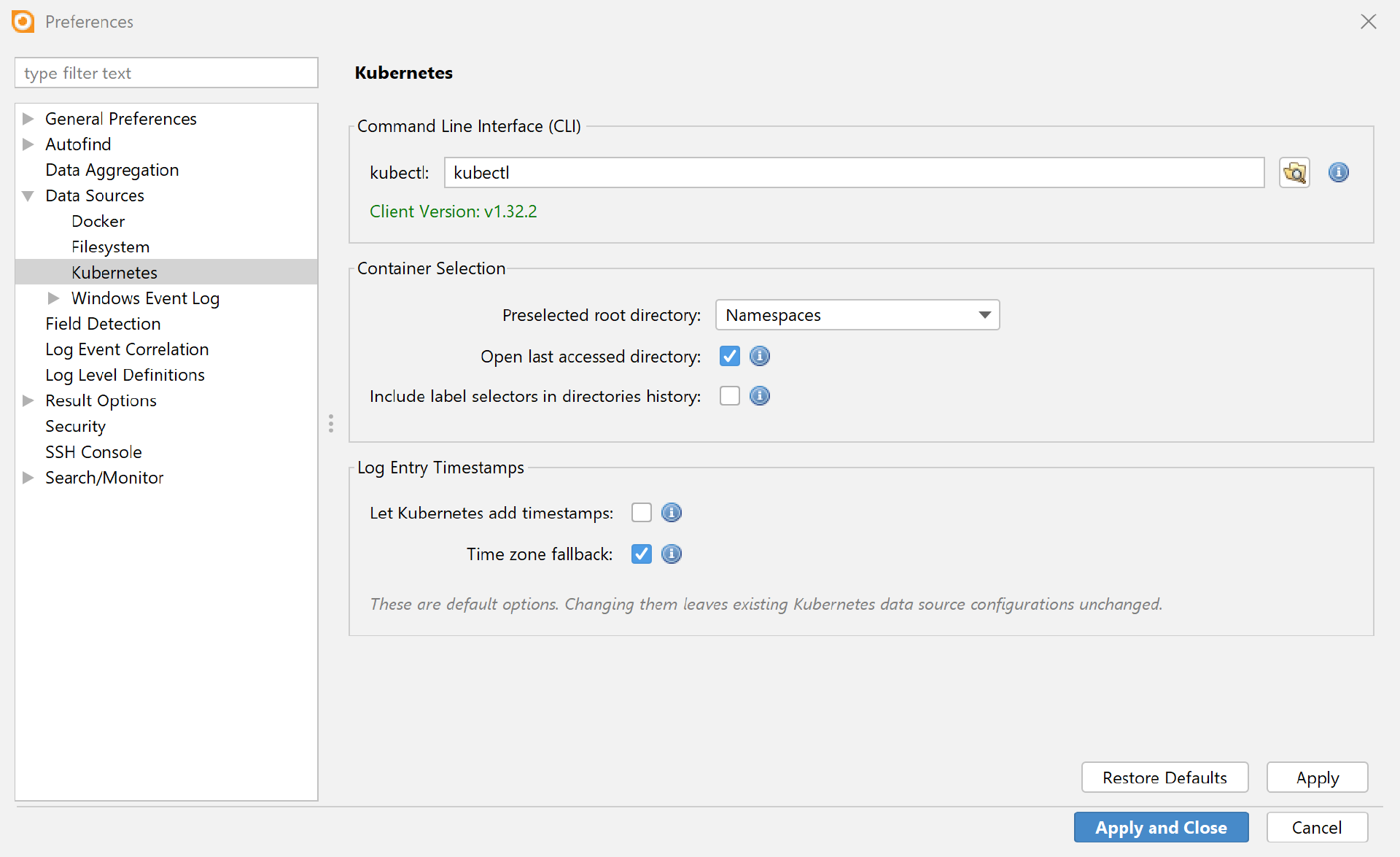
Fig. 10.7 The preferences page. The page provides the same Time zone fallback option.
The option determines whether the container time zone is used as a fallback for converting log entry timestamps that do not contain a time zone themselves. Where the time zone of the container can be determined, its daylight saving rules are applied. Otherwise one offset, measured when the container is first read, applies to all timestamps. The option has no effect when the container has the same time zone rules as the local computer.
The same pages offer Let Docker add timestamps and Let Kubernetes add timestamps. With them, Docker or Kubernetes adds its own timestamp to each delivered log entry. Combining this with Time zone fallback can lead to an unexpected result, and the wizard warns about it.
These are the default options applied when you choose new Docker or Kubernetes data sources. You can change the option for an individual data source in the Configure source wizard, on its Date/Time Recognition (Step 2 of 3) page. The option appears there only when every selected data source is a container.

Fig. 10.8 The Configure source wizard, Date/Time Recognition (Step 2 of 3) page, where the time zone fallback can be set per data source.