13. Preferences
The Preferences window groups Retrospective’s options by topic
and lets you customize the behavior and look of the program. Open it with the
menu item ( ) or with
Ctrl+Shift+P. On macOS, open it from the Retrospective
menu or with Cmd+,.
The window shows a tree of preference pages on the left and the options of the selected page on the right. Type into the filter field above the tree to locate a page or an individual option. The window opens just large enough for the page it shows. If you move or resize it, it reopens at that size and position until you close Retrospective. Within the same session, it also reopens on the page you viewed last.
Restore Defaults and Apply sit below the current page. Apply and Close and Cancel sit in the bottom bar of the window:
Restore Defaults |
Resets the options of the current page to their factory defaults and saves them at once. Cancel does not undo this reset. |
Apply |
Saves the changes of the current page without closing the window. |
Apply and Close |
Saves the changes of every page you visited and closes the window. |
Cancel |
Discards all changes you did not save and closes the window. Esc and the close button of the window do the same. |
Changes you make on a page stay in place when you switch to another page and back, until you apply or discard them.
If a value on a page is invalid, its field is outlined in red. A text field also shows an error icon; hover the icon or the field to read the reason. The first problem on the page also replaces the page title. Apply and Apply and Close stay disabled until you correct it. While a page is invalid, you cannot switch to another page: Retrospective shows the message Could not accept changes and keeps the page selected.
Some pages run a check in the background, for example of a command-line tool. While such a check is running, Apply and Apply and Close wait for its result.
The preferences may fail to save, for example because the disk is full or the file is read-only. Retrospective then shows the reason under Could not accept changes, keeps the window open and adds an error entry to the Status view. A preference changed outside this window that cannot be saved is reported in the Status view only.
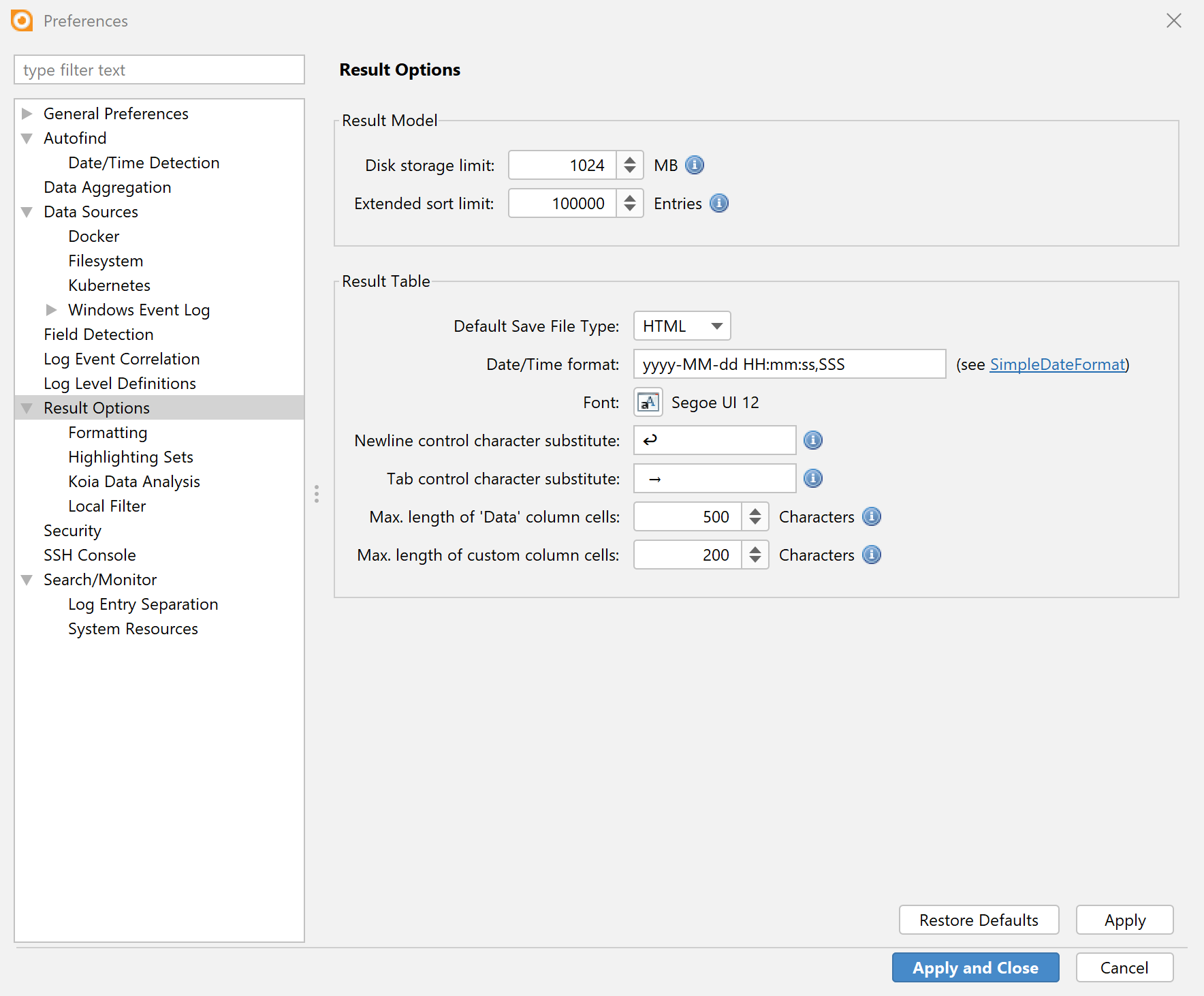
Fig. 13.1 The Preferences window: the page tree on the left and the selected page on the right. Restore Defaults and Apply sit below the page, Apply and Close and Cancel in the bottom bar.
The following topics describe the preference pages in the order of the tree.