6.11. Status
The Status view collects the status and notification messages that
Retrospective reports while it runs. Such a message reports when a search
starts or finishes, how many entries matched, or a warning or error raised
during searching, monitoring or configuration. Open it with
 Status on the main toolbar, from
, or with Ctrl+S. On macOS, press
Cmd+S.
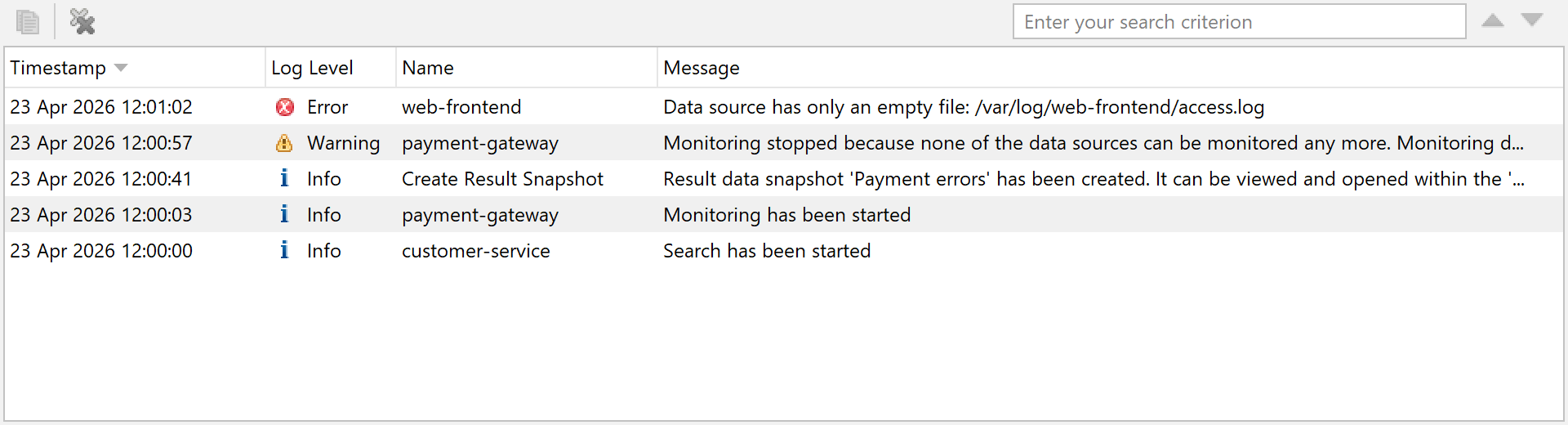
Fig. 6.45 The Status view, with a term entered in the find bar and its matches highlighted.
Each entry has the columns Timestamp, Log Level (Info, Warning, Error or Exception), Name and Message. The table shows the first 250 characters of a message; point to a row to read up to 1,600 in its tooltip.
The list holds the last 250 entries in memory. The same message is shown at most five times per run; the sixth time, it ends with Further warning messages for this search are suppressed. The list is separate from Retrospective’s log file.
Note
Three Autofind messages can reach the Status view: an Info when Autofind succeeds while data is fetched, a Warning when it fails, and a Warning when monitoring picks up a newly discovered file. The success messages name the detected encoding, log entry separation and date format. The failure message names the file and the assumed defaults, so you can correct the data source. See the encoding notes under Autofind.
The view is read-only. The toolbar and the right-click menu offer
 Copy (textual) and
 Delete all, which asks for confirmation.
A find bar sits at the right end of the toolbar. Press Ctrl+F to move the keyboard focus into it; the field is unavailable while the list is empty.
The term is matched as plain, case-insensitive text against the text of
every column; the find bar searches a message as far as its tooltip shows it.
When the term appears only beyond the shortened text, the cell’s trailing
... is highlighted.
Wildcards and regular expressions are not interpreted. No row
is hidden: every match is highlighted in yellow and the current one in red.
 Previous and
 Next step through the matches and wrap around at either end.
Esc in the field, or its clear button, empties it.
6.11.1. Notifications
The status bar at the bottom of the main window shows the progress of the current search on the left. On the right, it shows background operations with a Cancel button. In the center, it can show the memory reading (see Memory Use). Badges report notifications. A new notification also shows a small message window for a few seconds; click it to close it.
The  information badge shows how many notifications you have
not dismissed; it is hidden when there are none. These come from the
startup update check (see Software Updates) and from an error
report that could not be sent. Click the badge to
open the list New notifications. Open follows an
entry’s link, for example the download page of a new release, or closes the
list and opens the matching preferences page, for example the proxy
settings when the proxy server requires authentication. It appears only for
an entry that has one of the two. Ignore dismisses one entry,
Ignore all every entry. An unregistered copy shows the same icon
with the label UNREGISTERED.
The  error badge appears when an unexpected program
error occurs. It counts the distinct errors collected since the last report
that was sent or ignored. Its tooltip lists the latest ones. Expected
problems, such as an unreachable host, are reported in the search tab
and the Status view. The error badge is reserved for errors that indicate a
defect in Retrospective itself.
6.11.1.1. Reporting a Program Error
Click the error badge to open the Error report form. From there the collected errors can be sent to the Retrospective developers:
Show details opens Error report details with the content a report sends.
Enter Email address (mandatory) and, optionally, Additional information (optional), at most 300 characters, such as the actions you performed before the error occurred. A counter shows how many characters remain.
Submit becomes available once the address is valid. It sends the report over the internet to centeractive.
Ignore discards the collected errors without sending anything; Cancel keeps them, and the badge stays visible. Closing the form with its window button acts like Cancel.
A report contains the program version and release date, the operating system and its architecture, the Java version and vendor, and the registration key ID. It also contains the error details, your email address and your information. No log files or log data are attached. An error message itself can contain a file path or a search expression from the failing operation.
After Ignore, or once a submitted report has reached centeractive, the badge disappears. If the report cannot be sent, the errors are kept, the badge stays, and the notification Error report not sent appears (see the information badge above); click the error badge to try again. The collected errors are kept only in memory, so restarting Retrospective also clears them. Nothing is ever sent without pressing Submit.
6.11.2. Memory Use
The center of the status bar can show how much memory Retrospective is
currently using, against the maximum it is allowed: for example
412 MB / 2 GB. The bar behind the figures fills in proportion, so a glance
tells how close a session is to the limit. Point to it to read the three
figures the Java runtime reports: how much is in use, how much has been
reserved from the operating system, and the maximum.
The reading is a diagnostic aid and is switched off until you ask for it. Select Show memory use in the status bar in the UI Settings section of the General preferences page. It appears and disappears immediately; no restart is needed.
The maximum is fixed when Retrospective starts and cannot be changed while it runs; the installed program reserves 2 GB. Searching and monitoring keep their results on disk rather than in memory (see Result Options). The figure therefore normally stays well below the limit, even for very large results. A reading that sits at the limit for a long time is worth reporting.
The reading is not shown in a detached tab window: it covers the whole program, so the main window states it once.