9. SSH Console
Retrospective contains an SSH client named SSH Console. It uses the secure shell protocol to connect to remote hosts that you have defined in the Host Manager. The SSH Console primarily emulates the control sequences of xterm, and also supports a subset of vt100.
9.1. Console Creation
You can create and start individual SSH Console tabs in different ways:
Through the main menu , then the host, listed by its Description.
Through the context menu item New SSH Console in the Host Manager. It is enabled when exactly one SSH host is selected.
Through the context menu item Tail File in new SSH Console of the result table. It is enabled when exactly one row is selected and its entry comes from an SSH host defined in the Host Manager.
Through the context menu item Tail File in existing SSH Console of the result table. It is enabled when exactly one row of an SSH host is selected and a console of that host is open. It selects that console, in the main window or in a detached window. A console whose connection is over reconnects first.
The New menu follows the layout of the host tree. Hosts that belong
to a folder sit in a submenu named after that folder. A folder holding more
than one host also offers an All item that opens one console per
host. When no host is defined, the menu holds a single disabled
<No Host Defined> entry.
When you start a new SSH Console, Retrospective establishes the SSH connection straight away, using the credentials configured for that host. You do not have to type the username and password again.
Opening a new console needs a registered license (see License Registration). Consoles are restored with the session or with a view, and a restored console does not need one.
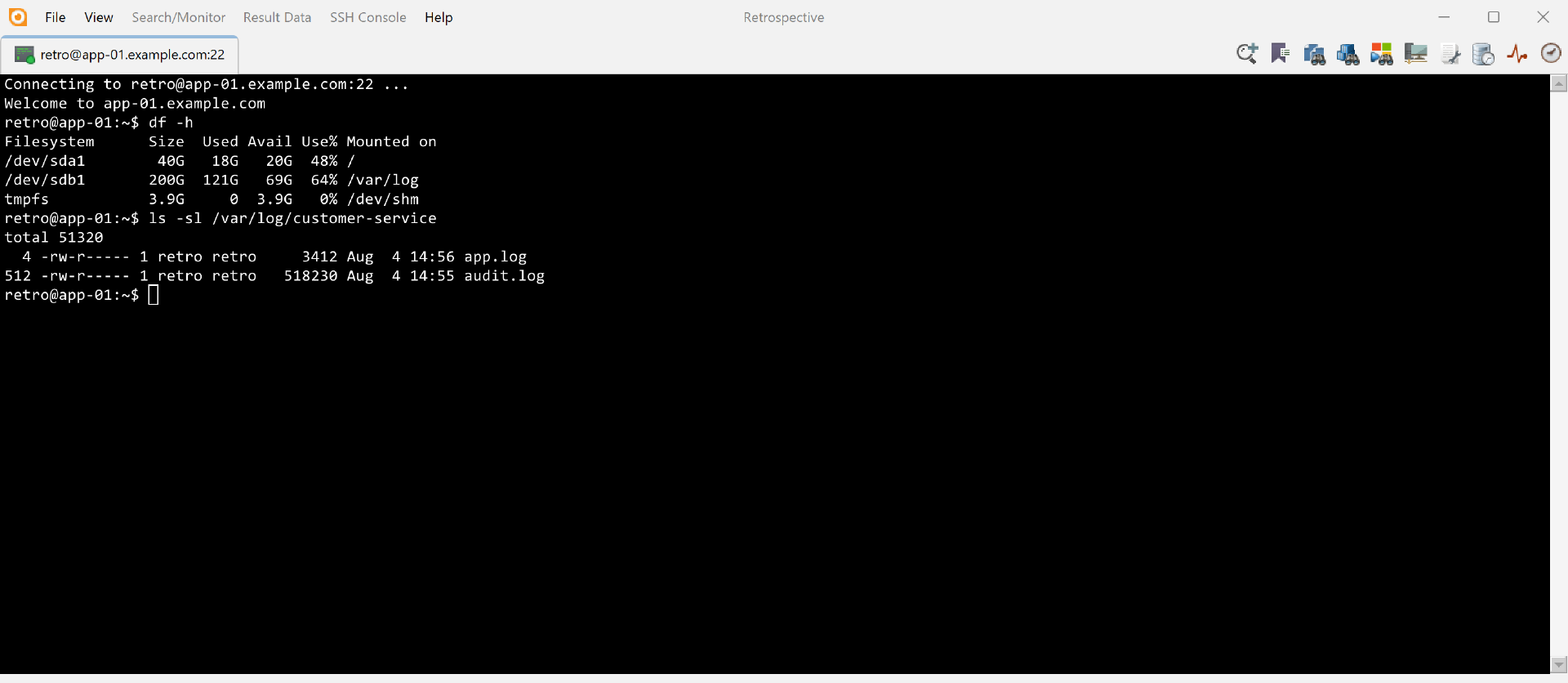
Fig. 9.1 An SSH Console tab connected to a remote host.
9.2. Connection State
The icon on a tab tells you what its connection is doing. The tab title is always the Description of the host.
 Retrospective is establishing the connection. The
console shows Connecting to <host> ….
 The shell is live.
 The connection dropped, for example because the
network went away or you typed
exit. The connection could not be established.
When a connection drops, the console reports the time it happened and waits: SSH Connection closed, type <enter> to reconnect…. Press Enter in the console to connect again. A reconnect starts a new shell, so the output of the previous session is cleared. A console that could not connect in the first place shows the reason and Cannot initialize SSH connection, type <enter> to retry connecting…. It also reconnects on Enter.
If the console is not the tab you are working in when the connection drops, the icon changes but the keyboard focus stays where it is. Click the console before pressing Enter.
9.3. Console Customization
You customize the general behavior and look of the SSH Console on the
SSH Console preferences page. It holds the
colors, the font, cursor blinking and the Line Buffer Size. The
terminal encoding is defined individually for each host within the Host
Manager (see Terminal Encoding). You
rarely have to change it, because the default best-guess behavior
detects the encoding of the remote terminal automatically. It does so by
analyzing some of the LC_* environment variables.
You can detach an SSH Console tab into its own window, just like any other tab in Retrospective. This lets you adapt the window to the needs of the program running in the SSH Console. For example, when editing a big configuration file with nano, it is good to have a lot of vertical space.
Detaching an SSH Console tab also helps when an action on a remote host calls for log monitoring. Suppose you deploy a new version of your application. In one tab you start monitoring the application server log file, and in a detached SSH Console window you run the deployment. Both can then be placed side by side, so any log changes are instantly visible after the deployment.
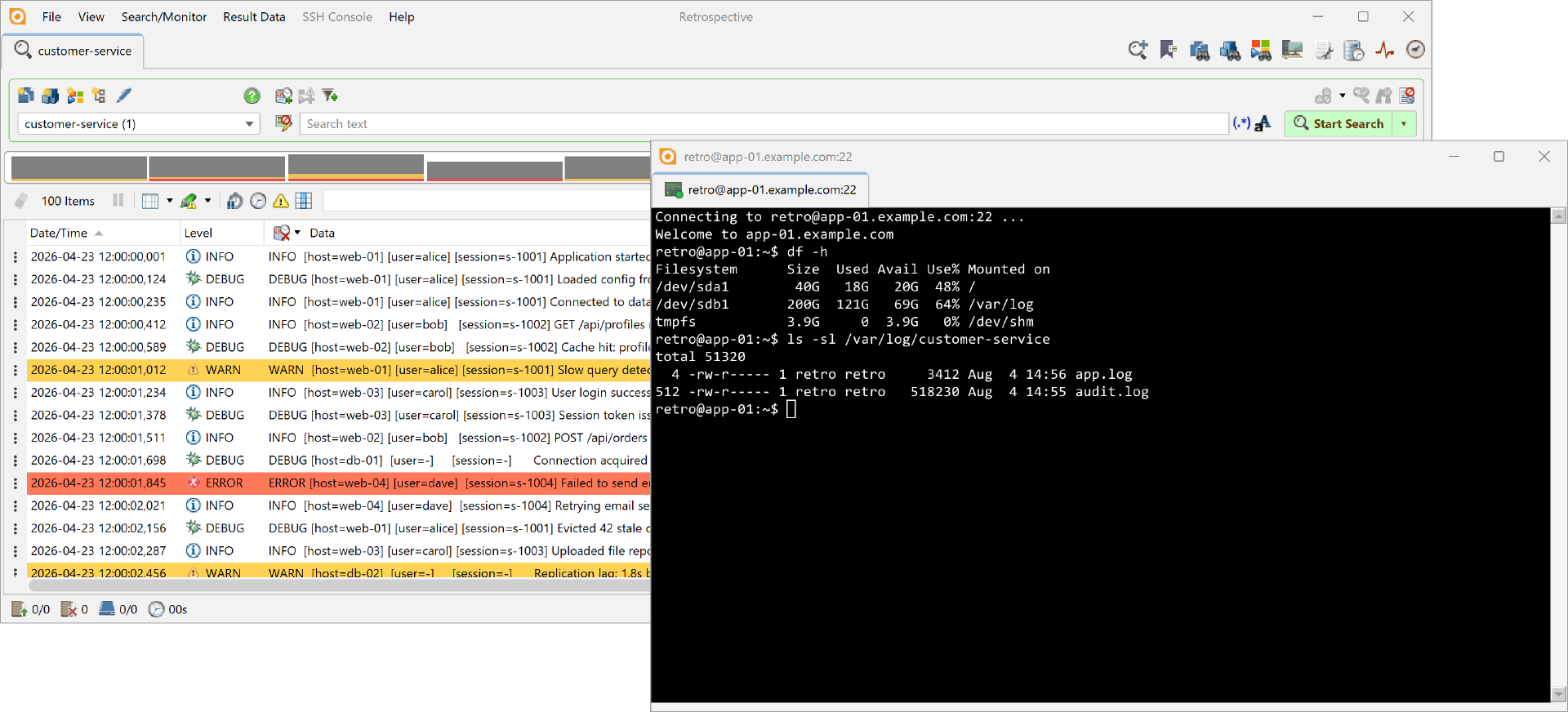
Fig. 9.2 A detached SSH Console window placed side by side with the main window for log monitoring during a deployment.
9.4. Further Console Features
The SSH Console has several more features.
It supports Alternate Screen Buffer, as other SSH clients such as PuTTY or iTerm2 on macOS do. The screen contents are therefore saved between the opening of typical console programs such as nano, vi, nmon or Midnight Commander. You can list the contents of a directory, open a file, and recall the directory contents after closing the file.
Copying text in and out of a console is common, so the SSH Console provides two ways to do it. Both are set on the SSH Console preferences page.
In quick copy/paste mode, a left click on the selected text copies it to the clipboard. A left click at an unselected position pastes the clipboard. This mode is on by default.
Keyboard shortcuts are off by default. When you turn them on, Ctrl+C copies, Ctrl+V pastes and Ctrl+A selects all terminal contents (Cmd on macOS). Ctrl+C then no longer interrupts the program in the shell. Ctrl+F opens the Find bar.
The right mouse button is not part of quick copy/paste mode. It always opens the terminal’s own menu, with these items in this order: Find, Open as URL, Copy, Paste, Select all, Clear buffer, Page up, Page down, Line up and Line down.
Find opens the Find bar in the console. Type the text to search for. The search ignores case unless you select Match Case. The bar shows the position of the selected match and the number of matches, for example 2 of 5. The arrow buttons select the next and the previous match. Esc closes the bar.
Web addresses in the console output are clickable. Hovering one underlines it
and turns the pointer into a hand; a left click opens it in your default
browser. Only http and https addresses become links, and the address
you see is the address that opens. An address that carries credentials before
the host name, or that is longer than 2048 characters, is not linked. In quick
copy/paste mode a click on a link follows it and neither copies nor pastes.
Right-clicking a link also offers Open as URL.
The SSH Console also supports Alternate Character Set. Line drawing characters in programs such as nmon or Midnight Commander are therefore displayed correctly even when the terminal uses a single byte encoding. Examples are latin1 and latin2.
9.5. Target Command Modification Inside the Console
The SSH Console does not support target command modification (see Target command modification). The shell started in SSH Console uses the default execution priority and does not perform any identity change. To work in a shell with a different execution priority or a changed identity, start a new shell with one of the following commands:
execution priority change:
nice -n <adjustment> $SHELL, for examplenice -n 7 $SHELLidentity change:
sudo -u <username> -i(or justsudo -iwhen switching to root), for examplesudo -u foobar -i
To change both execution priority and identity, change the identity first and the execution priority afterwards.